

Windows is full of productivity features that we rarely use or are even unaware of. Once in a while, we come across a little setting or a toggle that is genuinely handy. Live Captions in Windows 11 is one of those “under the hood” tools for me
At first glance, Live Captions is an accessibility tool. Turn it on, and Windows displays subtitles for audio playing on your PC. That’s it. But spend a few days with it on your video, audio, and meetings sessions, and you realize it solves problems you didn’t know you had. I’m getting used to it, and now turning it off feels like losing a sense.
What Windows Live Captions actually does
It adds real-time captions to almost any audio on your PC.
Live Captions generates on-screen subtitles for any type of audio/video across your system, not just specific apps or videos. That means it works with YouTube in your browser, Zoom or Teams calls, locally stored videos, podcasts, and even games with voice dialogue.
Unlike many modern AI features, Live Captions runs entirely on your device. Audio isn’t uploaded to the cloud, which makes it faster, more private, and reliable even without an internet connection. The captions appear in a floating bar that you can resize, reposition anywhere on the screen, or customize the look to whatever suits your eyes.
It supports 40 languages. While it isn’t perfect at catching foreign pronunciations, it’s accurate enough, and we can expect it to get better. Enable the Include microphone audio under Preferences, and it will catch anything you say. I sometimes use it to see if I am getting my Spanish pronunciations just right!
You have to enable Live Captions first from Settings
Turn it on once, and remember the shortcut key
Live Captions isn’t on by default in Windows 11. You can enable it instantly by pressing Win + Ctrl + L, or by navigating to Settings > Accessibility > Captions > Live Captions.
The first time you enable it, Windows downloads a small speech recognition package. After that, the feature is always just a keyboard shortcut away. When you select another language, Live Captions asks for permission to download additional language files, which take a couple of minutes.
The “opt-in” approach is probably why so few people know Live Captions exists. Microsoft included it as an accessibility feature, so most users usually give that part of the Settings screen a miss.
It makes online meetings easier to follow
Live Captions quietly fixes many of the worst meeting problems.
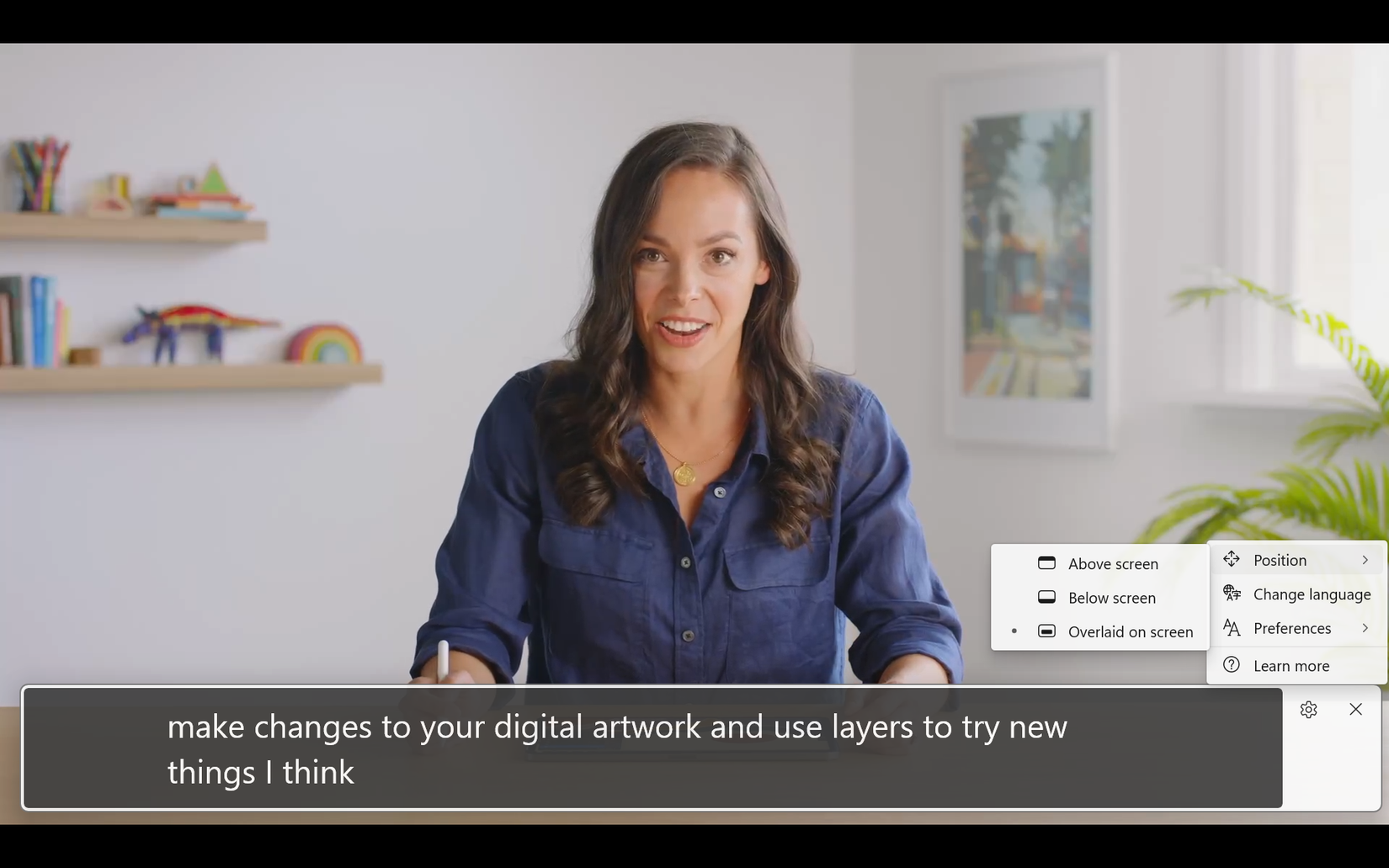
Anyone who attends frequent video calls or webinars knows the pain points: bad microphones, fast talkers, foreign accents, and moments when your audio cuts out. These frustrations can be cut short with Live Captions.
Imagine you are working from a coffee shop. You can still follow a conversation if it overlaps with background noise. It’s also incredibly useful in shared spaces, where wearing headphones isn’t always practical. You can mute your speakers and still keep up with the discussion. In long meetings, captions can reduce mental fatigue. Your eyes can take some load off your ears.
I suddenly realized how often audio (or video) lacks captions. It has helped me catch heavily accented words in a couple of webinars. I guess closed captions on common sites like YouTube have made us take them for granted.
It changes how you watch videos and tutorials
Reading while listening improves focus more than you expect.
What surprised me most was how quickly it became one of the useful little features in Windows 11. With captions visible, I could glance at the text while working in another window and still follow the video. For technical tutorials, this makes it easier to catch command names, settings, and unfamiliar terms.
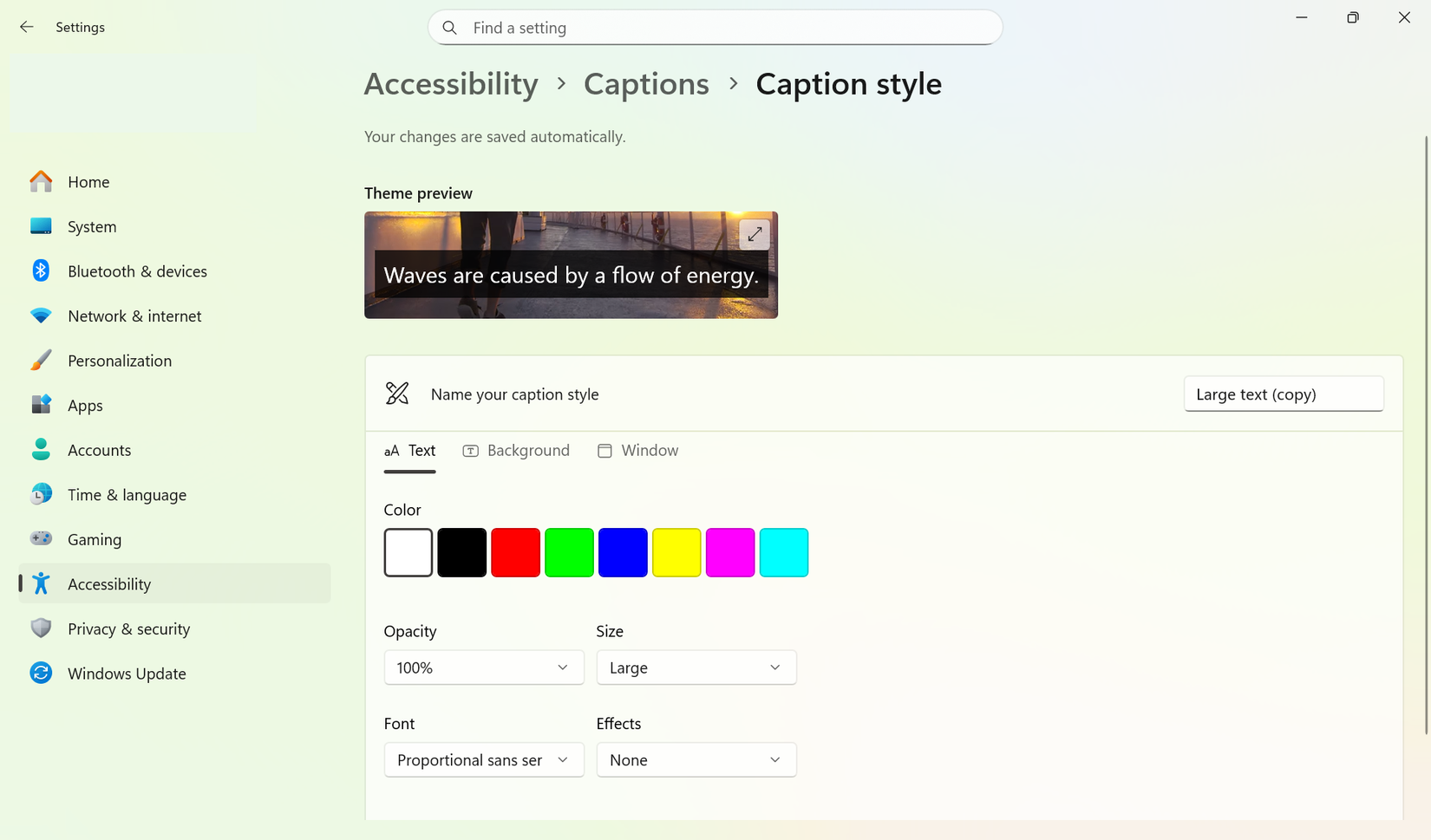
I am sure this is a big relief for people who use legacy tools with poor accessibility. Even if you have no hearing difficulties, captions can help with comprehension. Reading and listening at the same time engage multiple cognitive pathways, which helps information stick. Choosing and customizing a Caption style is a step I would recommend for your kind of use.
It doubles as a lightweight transcription aid
It’s not a transcript tool, but it’s surprisingly useful.
Live Captions doesn’t save text or generate transcripts (though we wish it were so). It doesn’t replace dedicated transcription apps. But for quick reference, it’s incredibly handy.
If you’re listening to an interview, podcast, or recorded call, captions make it easier to catch names, dates, and terminology. You can pair it with screenshots or quick notes to capture important moments without replaying audio repeatedly.
It’s accessibility done right
Useful for everyone, not just a specific group.
Live Captions is a perfect example of inclusive design benefiting all users. Whether you’re dealing with temporary hearing fatigue, noisy environments, or just trying to focus better on your PC. I use it regularly in online meetings when I start zoning out with video or audio.
There’s no setup, no account sign-in, and no learning curve. You launch it with a shortcut, and it works. That simplicity available at the touch of a button is neat.
Fewer “Sorry, can you repeat that?” moments
Once you try it, it’s worth keeping
Live Captions doesn’t interrupt your workflow or ask you to change habits. That’s why it’s so surprising how little it’s discussed. In a world of headline-grabbing Windows updates, Live Captions is one Windows feature under the radar.
It’s not perfect yet. I wish we could copy and paste text from Live Captions. Captions can also move too fast to read comfortably, making it difficult to keep up with the content being displayed. This defeats the accessibility purpose for people who need more time to process written information. And there are some errors now and then. But that’s expected with an AI tool.
Live Captions earns its place on your screen.
After a week of using Live Captions, turning it off feels like losing some flexibility. I like the cognitive friction it introduces, which helps with focus. It may not be the most glamorous feature, but it feels like an AI feature done right on Windows 11. If you haven’t tried it yet, enable it for a day. Keep it a keyboard shortcut away.