
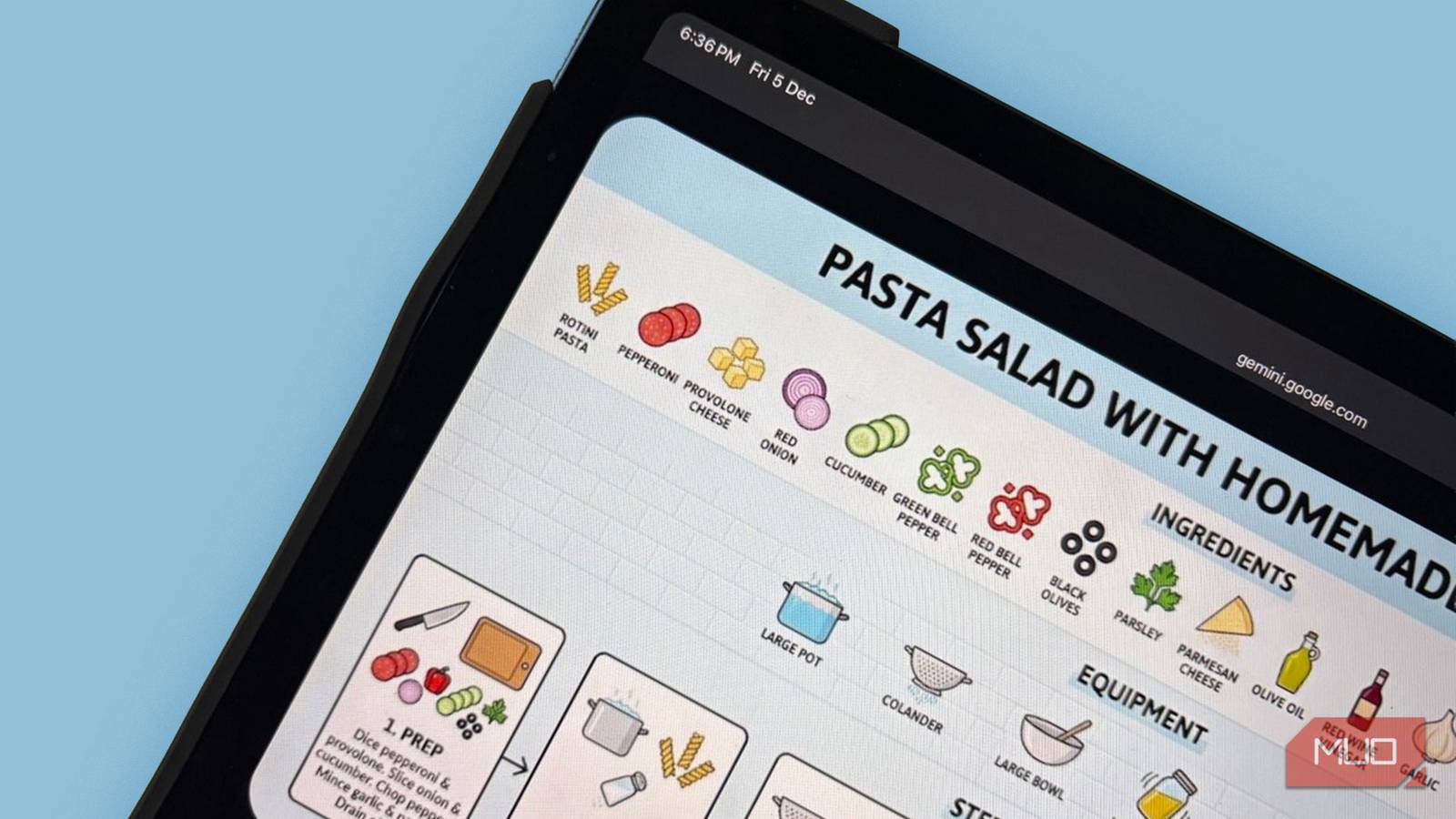

Beginner cooks like me have to depend on reading and re-reading recipes to get the dishes right. So, scrolling through a multi-page recipe on a site often feels like prepping for an exam. I always like the step-by-step visual recipes for this reason. Google’s latest Gemini Pro models, especially the upgraded Nano Banana Pro image generator, is giving me another way to use AI as a cooking assistant. I am using it as an experiment to create beautiful infographic-style recipes. By cleaning the recipe text first and then feeding Gemini the right structured prompts, you too can turn any dish into a simple infographic you can follow at a glance.
If you are using the free version of Gemini, you can try out Nano Banana Pro for a few image generations per day. Google hasn’t specified a quota yet.
1
Start by isolating the real recipe
Strip away the fluff, ads, and formatting inconsistencies
Not every recipe is professionally designed with schema markups. Many recipe blog pages include personal stories, pop-ups, ads, and long paragraphs when you only need measurements and steps. Before Gemini can generate a clear infographic, you should first dig out the recipe and turn it into something clean and structured. The quality of this step will set up the accuracy of the final visual guide.
If Gemini successfully extracts the data, it saves you a step. If not, begin by copying only the essential elements, like the recipe title, servings, prep, cook, and total time, ingredients with units, step-by-step instructions, any critical visual cues (golden brown, thickened, fragrant, bubbling), etc.
Avoid dragging in long introductions or non-recipe content. I also fix inconsistent measurements like converting “1 tbsp” to “one tablespoon.” I am unsure, but I think it makes a difference when Gemini tries to parse the text later. As you clean the text, split multi-action steps into separate lines. “Sauté onions and garlic, then add tomatoes and simmer until thick” becomes three steps. You can also paste the recipe page link into Gemini and tell it to extract the recipe for you (as I have done in the screenshot). Do check the measurements and quantities. I have had a few hits and misses here.
2
Give the recipe a formal structure
A predictable format makes better sense to Nano Banana and you
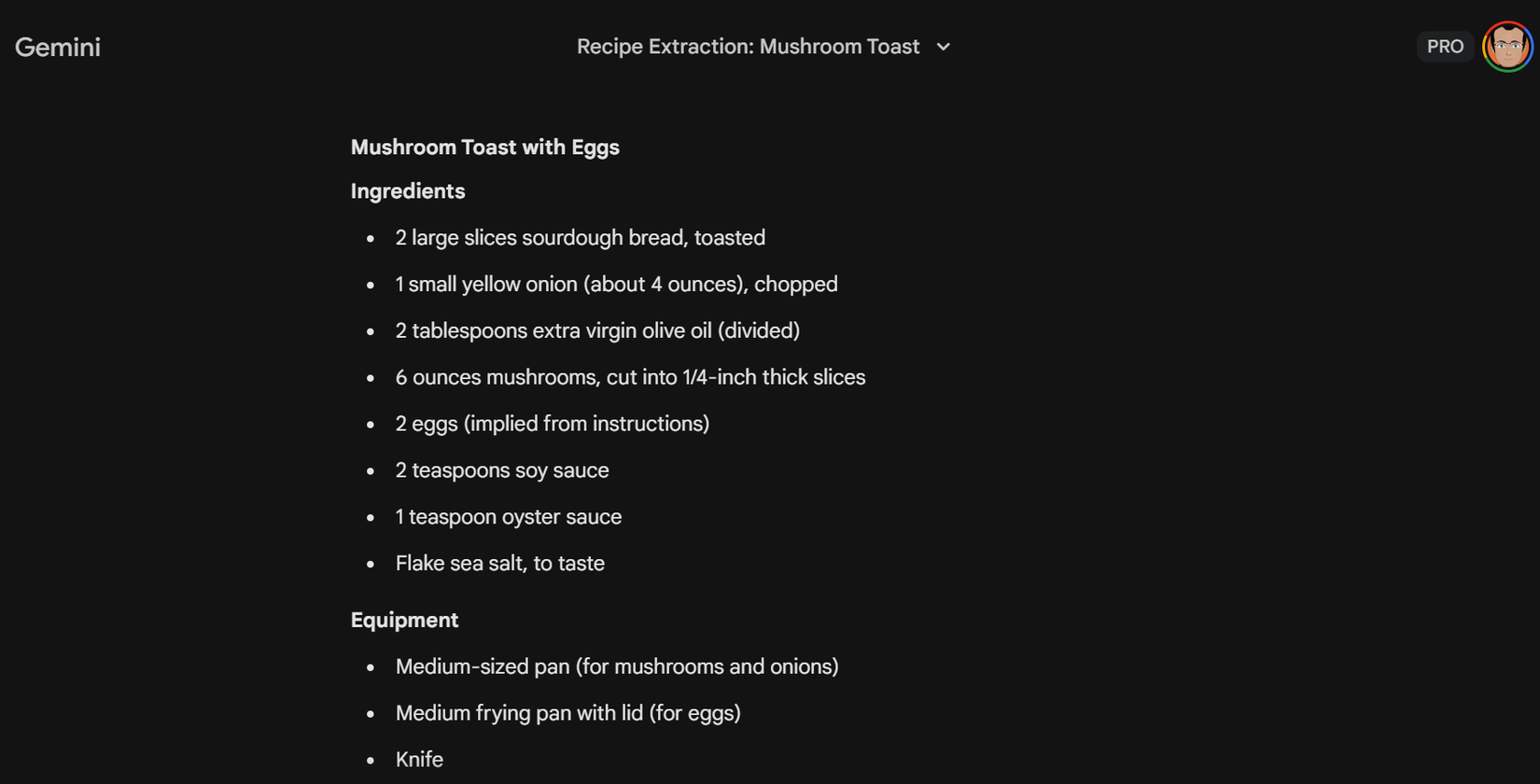
You can hand Gemini a bunch of paragraphs. I find it better to organize the recipe into a structured format, like all recipes are meant to be. I can’t be sure, but perhaps all predictive LLM models have been trained on the recipe schemas. Either way, you can experiment with different formats and compare the results. My structure is simple, and it looks like what you see in the screenshot. It doesn’t have to be perfect, but just predictable for Nano Banana to understand. I combined the extraction and organization into one single prompt, as you can see above.
Read this recipe: [RECIPE]
Extract structured data from this recipe under these categories: Ingredients with quantities, equipment, prep steps, cooking steps, timing, and notes. Remove all fluff, ads, and irrelevant text.
3
Craft your Nano Banana Pro prompt
The model responds best to concise constraints and clear visual expectations
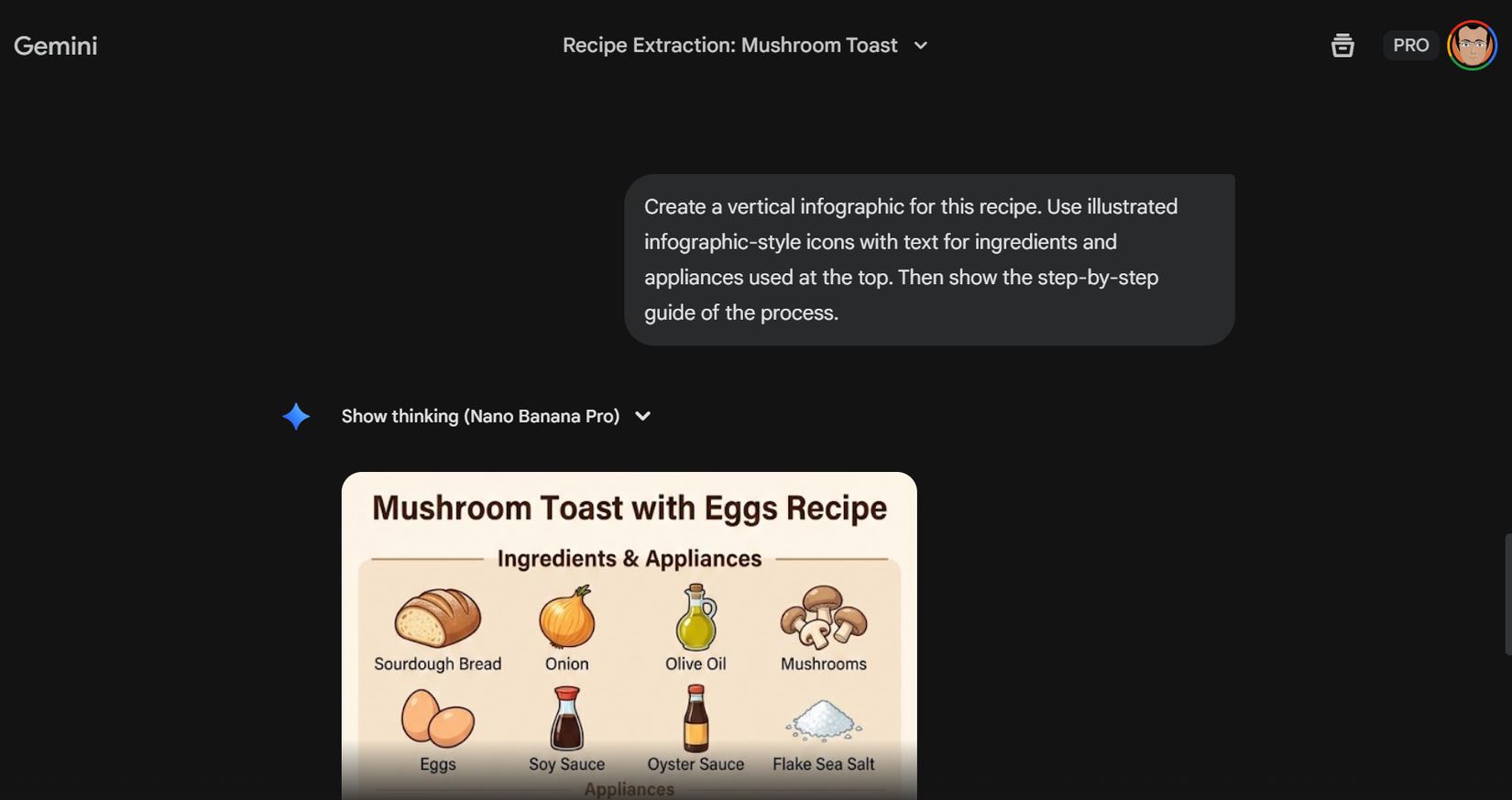
Now that you have your data, open Nano Banana Pro. The trick here is to tell the AI to act as a graphic designer rather than an artist. If you just ask for “a picture of sourdough bread,” you will get a hyper-realistic photo. We just want a functional and minimal infographic, even though Nano Banana supports a variety of graphic styles.
Follow these steps to generate the guide:
Paste your cleaned text into the prompt window. Add the specific design command. It can be something like this,
Create a vertical infographic for this recipe. Use illustrated infographic-style icons with text for ingredients and appliances used at the top. Then show the step-by-step guide of the process.
You can finetune the art style by adding keywords like “minimalist vector art,” “clean lines,” or “high contrast” to ensure readability on a small screen. Hit Enter and wait for the AI to render the layout. The key is telling Nano Banana the structure of the layout, not just what the recipe is about.
4
Refine and tweak the infographic
Make final tweaks before heading to the kitchen
AI isn’t perfect, and you don’t want to find out it confused “tsp” with “tbsp” when you have already salted the soup. I always zoom in on the text elements to verify the measurements against my original notes. Nano Banana Pro has a built-in “In-painting” prompting capabilities that allow you to make edits to photos with targeted text prompts without affecting other parts of an image.
In fact, Gemini recommends that you iterate on your first draft. You can try prompting nudges like:
Use simpler black and white flat icons.
Correct the quantity of salt to ½ teaspoon.
Increase contrast so I can actually read this while cooking.
Highlight timing cues with little clocks.
5
Save and use in the kitchen
Turn your efforts into a practical visual guide
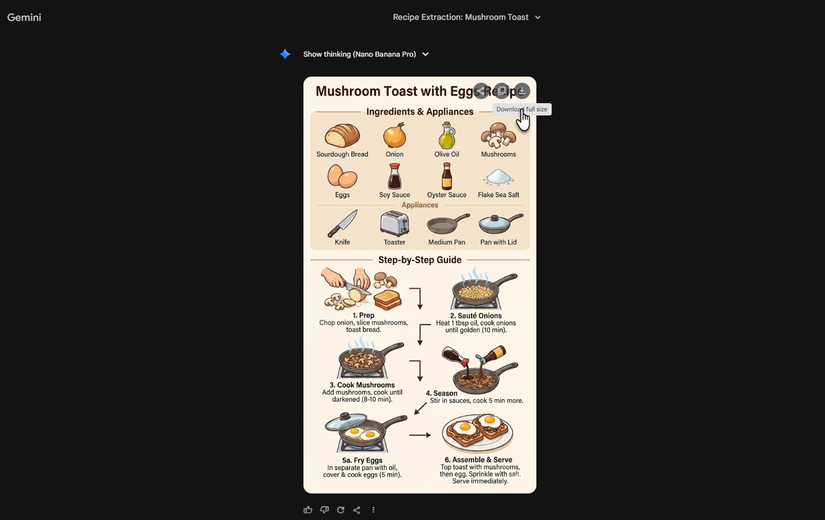
By now, you should have ironed out the mistakes and adjusted everything. Usually, I don’t obsess over the look if the recipe content is accurate. The act of cooking is far more important.
Save it as a PNG for sharp display on a phone or tablet. You can also create a print-friendly white-background version if you prefer hard copies (I don’t… waste of printer ink), and save your template to reuse for future recipes.
With Nano Banana Pro, you can generate different variations of the graphic. For instance, a minimal IKEA-styled guide without text labels or a comic art version. It’s a nice way to add some fun to your kitchen. Create a custom Gemini Gem if you find this method useful.
Bridging the gap between text instructions and visual clarity
Using AI for cooking is a fun project. I now have a dedicated “Visual recipes” album on my iPad’s gallery. The three or four I have made so far are proving to be a big help when my hands are plastered with dough or something else. Strangely, as a novice cook, I feel less hurried and a lot calmer in the kitchen now.