
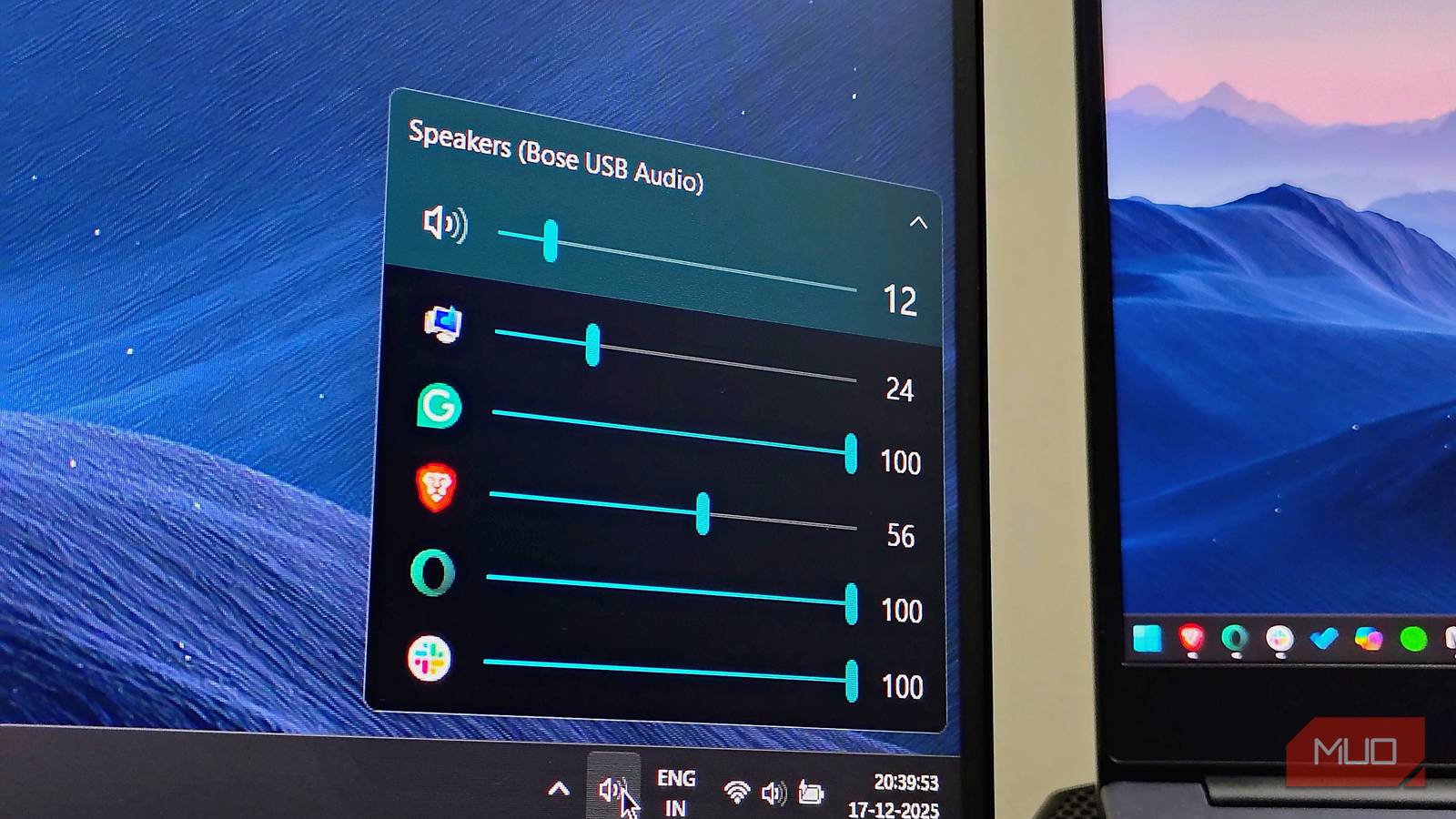

For years, Microsoft’s approach to audio management felt like an afterthought. In Windows 11, the company tried to streamline how we manage sound. Yet, the native volume mixer stays buried—hidden behind too many clicks and menus like Settings > System > Sound > Volume Mixer—or a clunky keyboard shortcut.
It disrupts your flow and pulls you out of the experience. This friction is why I resorted to a free open-source Windows app: EarTrumpet. It’s far more than just a third-party utility; EarTrumpet is exactly what the Windows volume mixer should have been all along.
- OS
-
Windows
- Developer
-
File-New-Project
EarTrumpet is a powerful, free volume control app for Windows. It features a modern interface that seamlessly blends with the OS, allowing precise per-app audio adjustments and quick playback device switching, significantly improving upon the default system audio mixer.
After spending a week with this app, I’m confident EarTrumpet offers speed, aesthetic integration, and excellent routing. Compared to these features, the native Windows audio toggle becomes instantly obsolete.
It brings per-app volume control to the system tray
Windows can do it, but EarTrumpet does it better
The core friction of the standard Windows mixer is the complexity in navigating to it, but then simplicity to a fault when using it. When you click the speaker icon in the Windows system tray, you only get a master volume slider within the Windows Quick Settings. And that’s all to it.
This tedious and limiting experience is exactly what EarTrumpet eliminates. Once you install EarTrumpet from the Microsoft Store, it starts working immediately—no need to fiddle with any settings. Right off the bat, you get a new speaker icon within the system tray: a sound trumpet.
For easy access, click the arrow in the system tray to show all icons, then drag the EarTrumpet speaker icon into the main system tray.
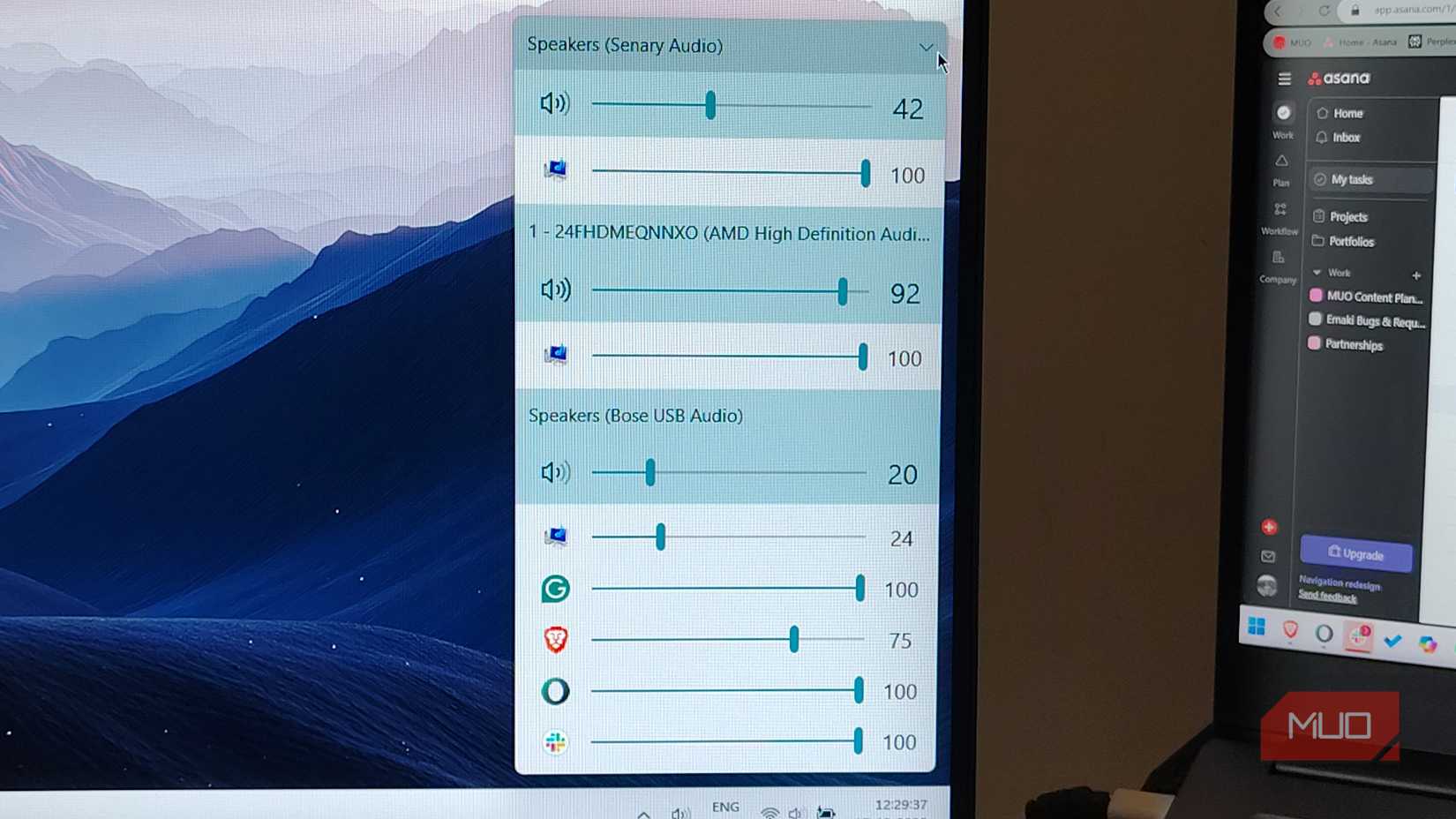
Click it, and you’ll enjoy the ease of an extensive yet simple sound mixer that feels like part of Windows 11 itself (which it should be). It presents you with an enhanced volume mixer directly where you need it most; I don’t need to be an explorer to manage my computer’s volume.
And if you have multiple audio sources, you don’t have to jump through a sequence of clicks; just one click on the up arrow, and you’ll have an extensive volume control in the system tray.
Audio routing made easy
Just drag and drop to change output
While the volume sliders are a great improvement, the ease of audio routing is what truly sets EarTrumpet apart from the Windows volume mixer.
In Windows, audio routing feels like an afterthought. To change your audio output, you must click the tiny sound output icon next to the master volume slider. To access the per-app volume mixer and sound controller, you’ll need to navigate even further below to manage per-app volume.
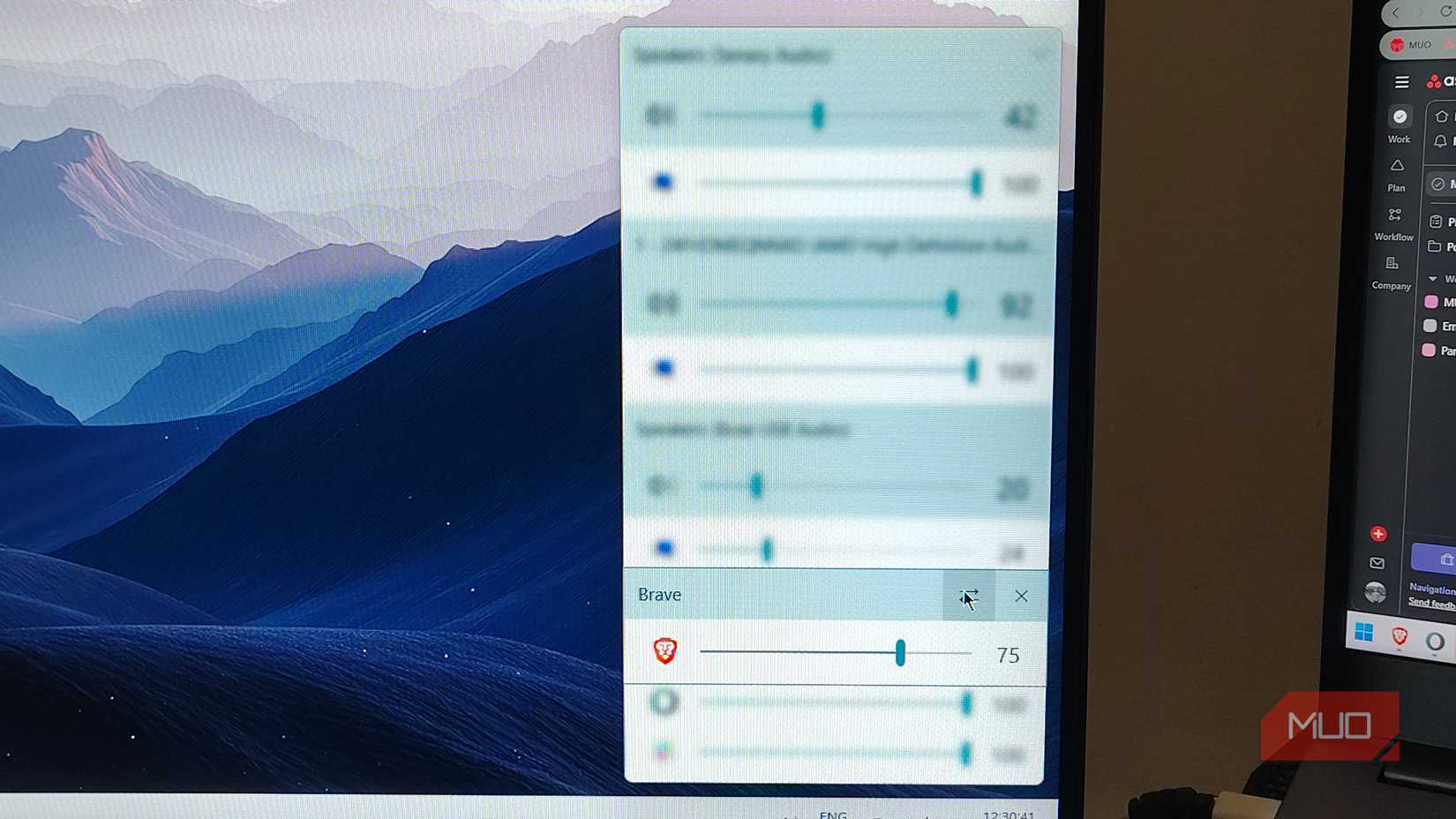
And if you change the master output, it changes the entire system. You can’t choose different outputs for different apps. EarTrumpet simplifies this complex logic into a simple right-click action.
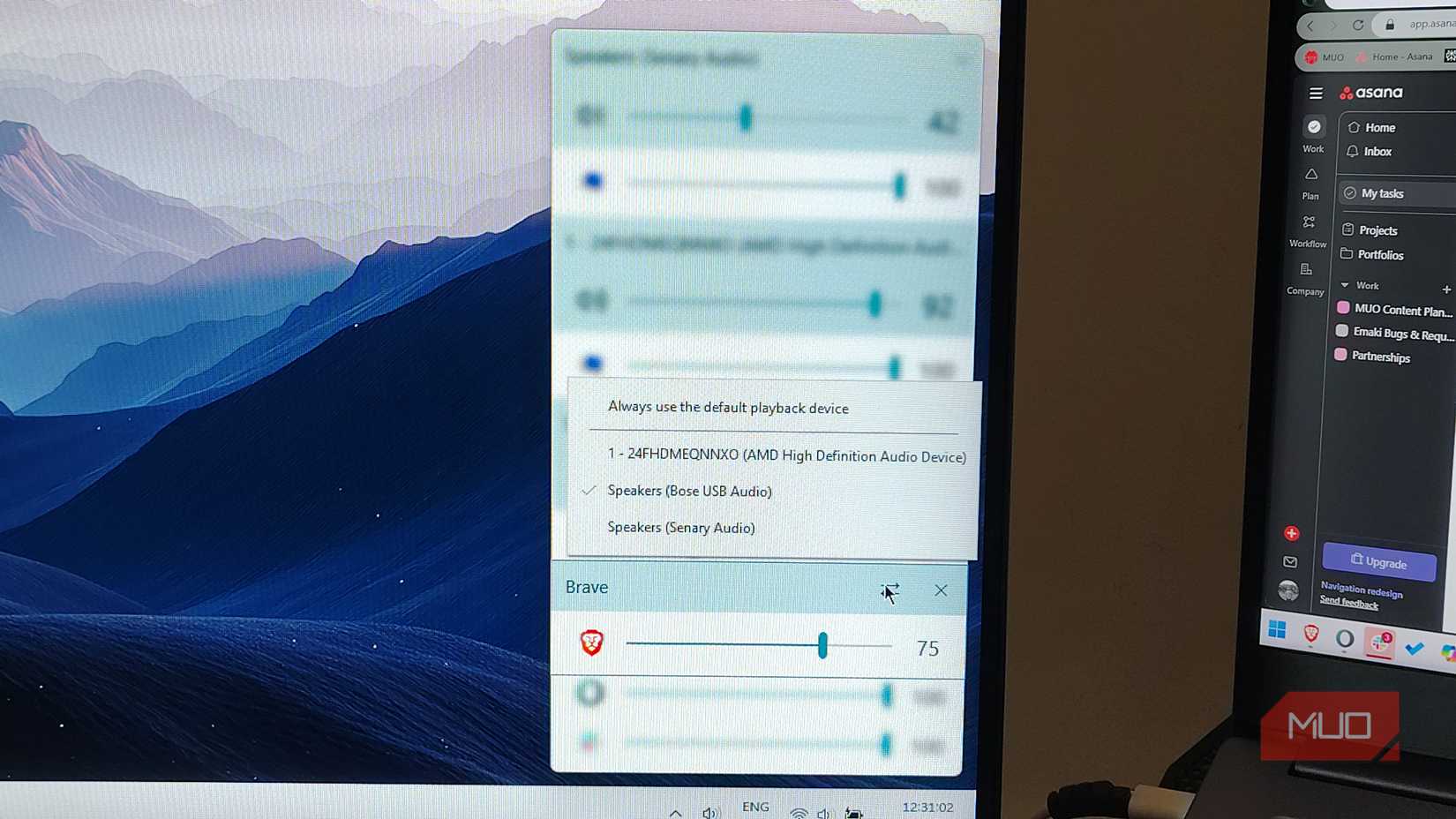
In the expanded view, you can see your different audio outputs. If I am listening to a podcast on Spotify and want to jump into a game, I can simply right-click the Spotify icon and choose my speakers as an output device. This routes the audio to the chosen device immediately.
I route my game audio to my headset so I can hear footsteps clearly, while keeping my background music or podcast playing on my desktop speakers. This creates a physical separation of sound that mimics a surround setup, and with EarTrumpet, setting it up takes just one simple drag-and-drop. It turns a frustrating configuration task into a fluid gesture.
Isn’t the new Mixer on Windows 11 good enough?
It gets the job done, but it’s more about convenience
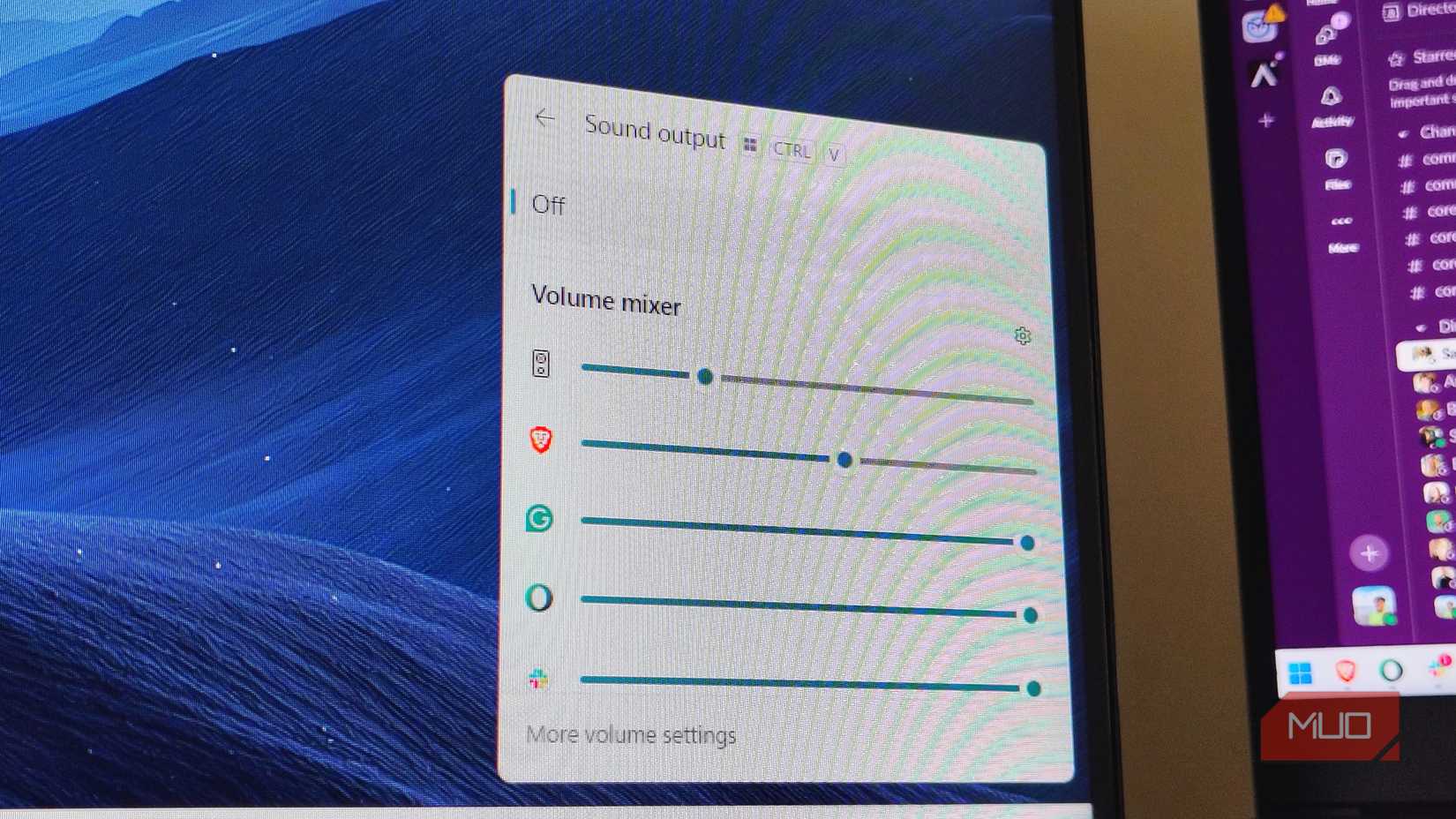
To its credit, Microsoft hasn’t completely ignored the volume issue. In recent updates, Microsoft introduced a new keyboard shortcut in Windows 11 (Win + Ctrl + V) that opens a quick settings panel with a volume mixer. You might also wonder why you should install another third-party app that will constantly run in the background and consume system resources, when the default implementation is arguably good enough.
However, as a Windows power user, I’m looking for something more than passable. My preference for EarTrumpet over Windows’ native volume mixer comes down to friction and flow. The native shortcuts require me to perform a three-finger claw maneuver, but why should I bother with that when I can get more granular controls with a single mouse click?
On top of everything, EarTrumpet handles legacy apps with much more grace. I’ve noticed the modern Windows settings app sometimes fails to detect older executables until they’ve been playing audio for a few seconds. EarTrumpet seems to hook into the audio session API more aggressively, detecting sources instantly. The negligible resource usage is a small price to pay for a massive upgrade in speed and usability.
Adjusting app and system volume should not be a chore
EarTrumpet is an app that blends in with its unassuming app icon. But once you install and start using it, it saves three clicks and five seconds of frustration, which over the course of a year significantly adds up.
It’s rare for software to feel so native and essential, like EarTrumpet does, that it renders the built-in option obsolete. At this point, Microsoft should just buy it and replace the default volume mixer; until then, it’s one of the first utilities I install on any new PC.