
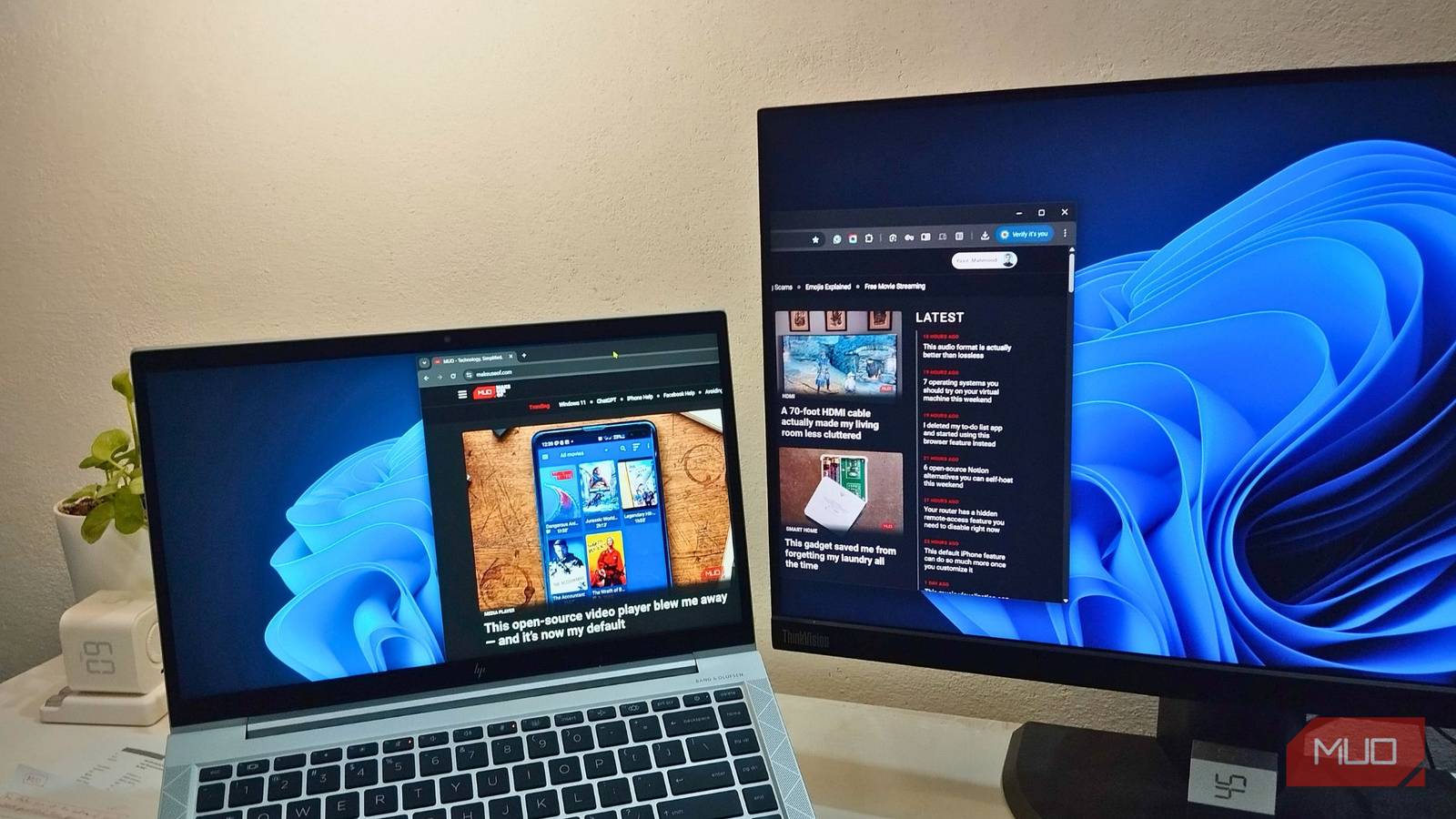

If you use your Windows PC for work, you probably have a startup routine whether you like it or not. I certainly do. As soon as I power on my laptop, I open the same apps, arrange them across your screens, and hope I haven’t forgotten anything. It’s not exactly difficult, but if there were an option to automate it, I’d absolutely take it. As it turns out, there is.
PowerToys’ Workspaces is a feature that does exactly what I’d been wishing for. It can remember which apps I use and how I arrange them, which allows me to restore my entire setup with a click. It’s incredibly handy and allows me to get straight to work without wasting time on setup.
- OS
-
Windows
- Developer
-
Microsoft Corporation
- Pricing model
-
Free, Open-source
Microsoft PowerToys is a set of free Microsoft Windows utilities for power users to tune and streamline their Windows experience for greater productivity.
What makes PowerToys Workspaces special
A smarter way to start every workday
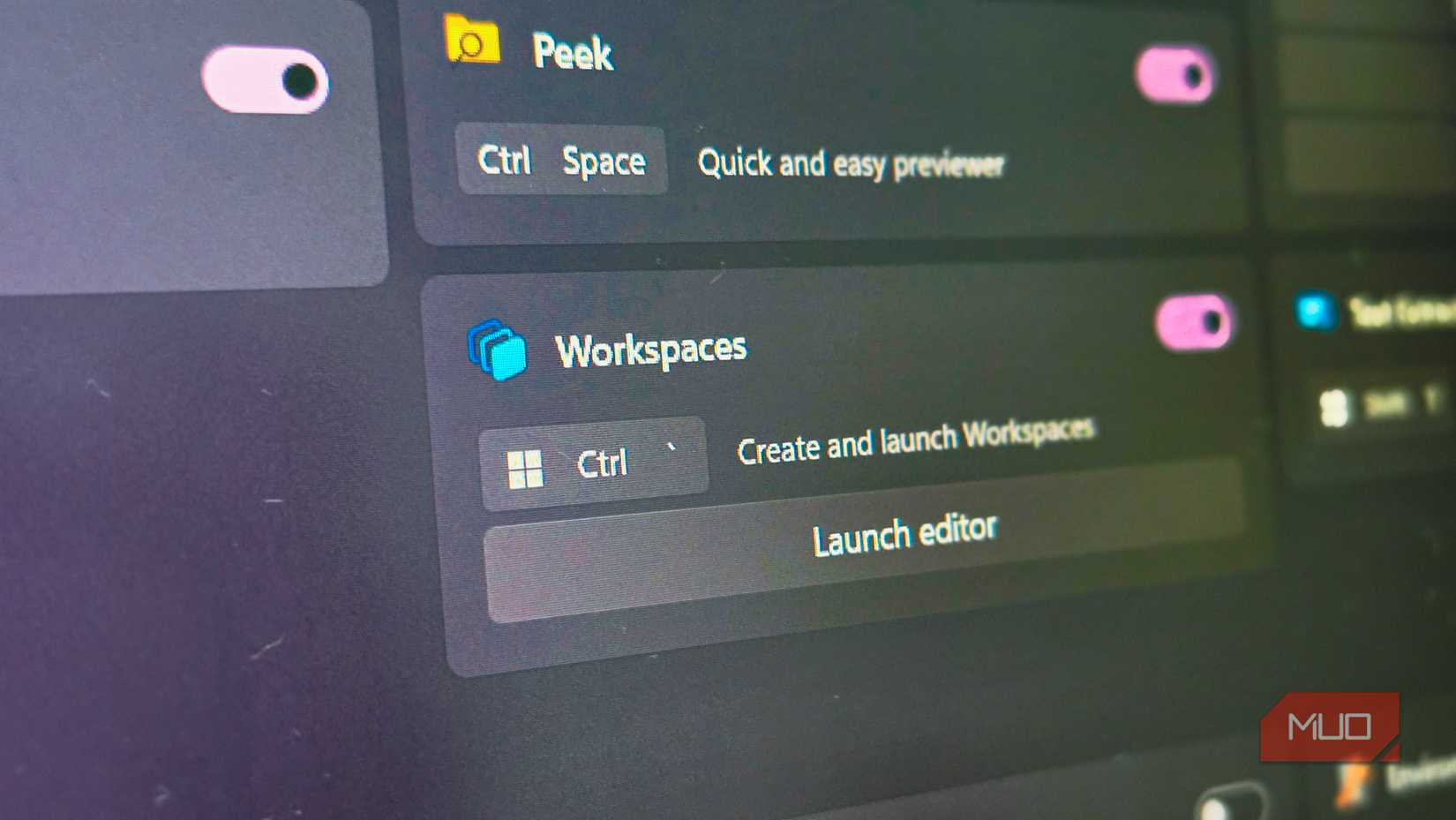
PowerToys is a free app from Microsoft that brings several useful features to Windows, including key remapping, an image resizer, handy File Explorer add-ons, and more. Workspaces is just one of the many tools PowerToys offers, and it’s easily become my favorite.
The idea behind Workspaces is simple. It lets you save an exact snapshot of your desktop. That includes which apps are open, how they are arranged on the screen, and even which ones are minimized. This way, after a shutdown or a reboot, you can simply launch your workspace, and PowerToys reopens everything in seconds.
This is a huge time saver for most people. My typical morning routine involves opening the browser, Word, Slack, Spotify, and a bunch of other apps. I also have to spend time arranging these apps across my two monitors so I can see the information I need at a glance.
PowerToys Workspaces solves this problem, and the best part is that I can use it for more than just my morning routine. I’ve created different workspaces for different tasks. One for focused writing, another for coding sessions, and another for creative work. PowerToys makes switching between them effortless.
Creating and editing Workspaces is easy
Set it up once and forget about it
To save a workspace, you first need to enable the feature. Open PowerToys, head to Windowing & Layouts > Workspaces, and turn on the Enable Workspaces toggle. While you’re there, you can customize the keyboard shortcut for launching the Workspace Editor if you want.
Next comes the fun part. Arrange your apps exactly how you want to open them. Put windows on the right monitor, resize them, minimize the ones you prefer tucked away, and get everything just right. When you’re done, press the Workspaces shortcut to launch the editor, click Create Workspace and hit Capture.
PowerToys will take a snapshot of your apps and their positioning. Enter a name for the workspace so you know exactly what it’s for. Review the apps PowerToys has captured and use the Remove button to exclude anything you don’t want included. Also, if an app requires admin privileges, make sure to tick the Launch as Admin box for it. Finally, tick the Create desktop shortcut option and hit Save.
After your workspace is ready, click the Launch button to test it out. If something doesn’t feel right, and you want to make changes to it, click the three-dot menu next to a workspace and select Edit.
One click to open all my apps exactly how I need them
Fastest way to get into work mode
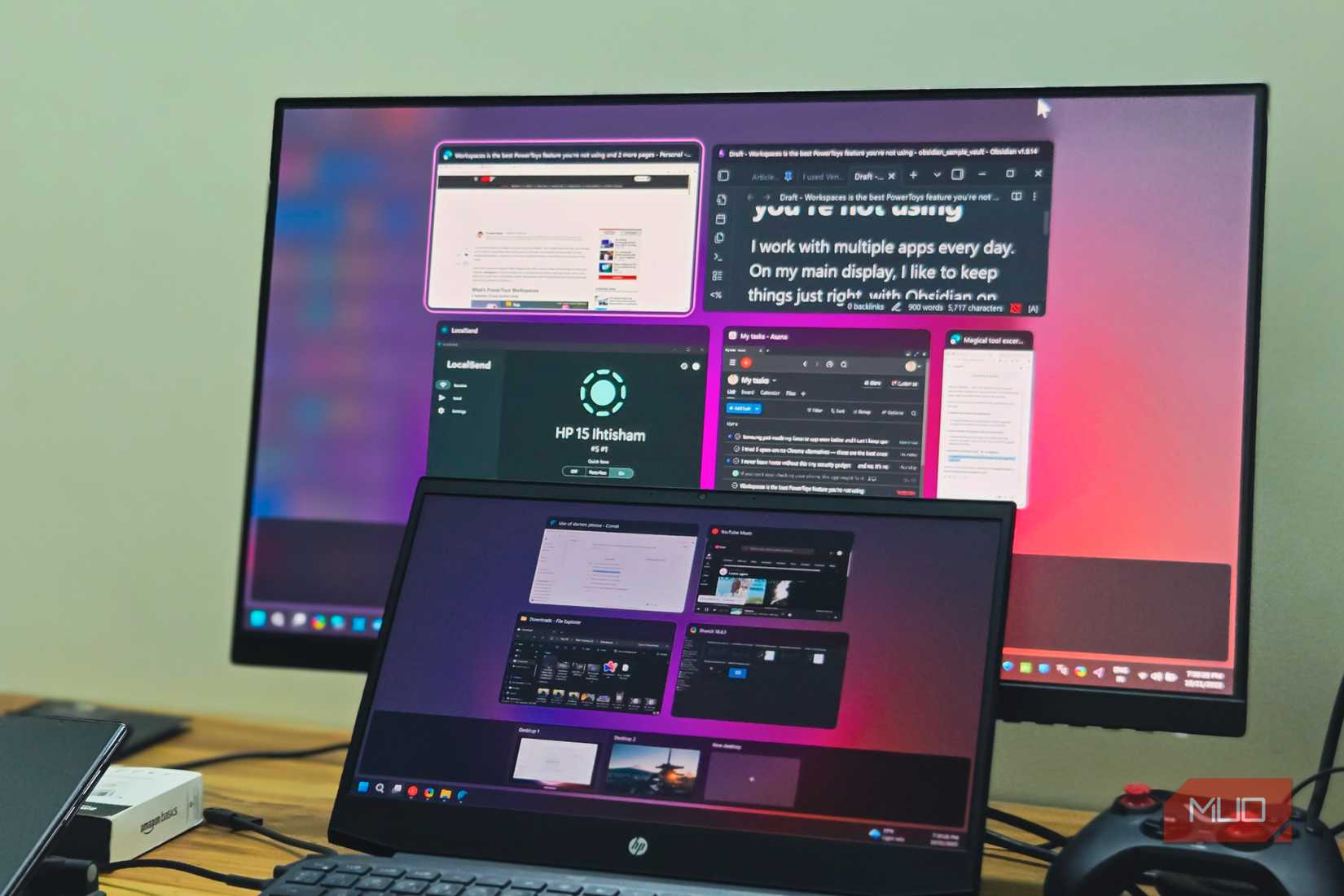
Once you have set up your workspace, you can open it using its desktop shortcut or from the Workspace Editor. For quicker access, you can also pin a workspace shortcut to the Start menu. Click it, and within seconds, your setup will be ready with all your apps arranged.
This is especially useful for anyone who uses multiple displays and likes to arrange their apps with Snap Layouts to make the most of screen space. Browser on one screen, documents on another, chat apps minimized neatly.
This Windows mod makes every inch of my monitor count
Open more apps, see everything, and never resize manually again.
It’s not perfect…
But still incredibly useful
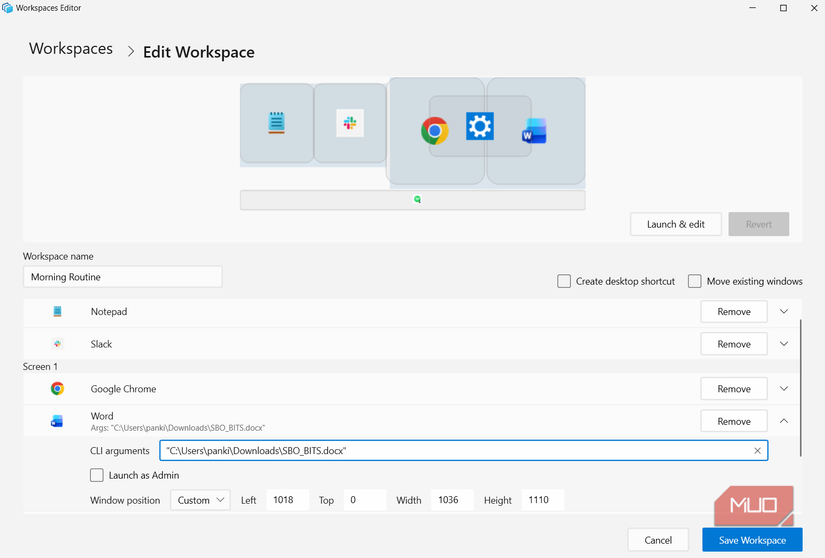
I absolutely love using PowerToys Workspaces, but it’s not without its flaws. For instance, while Workspaces can open your browser window and place it exactly where you want on the screen, it can’t restore the tabs you had opened when you saved the workspace.
My workflow depends on a specific set of tabs that I need to open every day, and Workspaces doesn’t solve this problem. The same goes for web apps. Instead of reopening them, Workspaces just opens a blank browser window.
There are limitations with other apps too. Workspaces doesn’t save the exact folder you had opened in a File Explorer window, nor does it reopen the document you were editing in Word. Fortunately, there’s a way around this. You need to add a CLI argument for the app while saving the workspace. This tells PowerToys exactly which folder, file, or starting location an app should open. It’s an extra step, but once configured, it works reliably.
Workspaces is one of those features that feels like it should be a part of Windows. I no longer avoid shutdowns or postpone Windows updates just because I don’t want to lose the apps I have open. Knowing that I can do my entire setup in seconds removes that hesitation completely.